
x.ai Grok Configuration
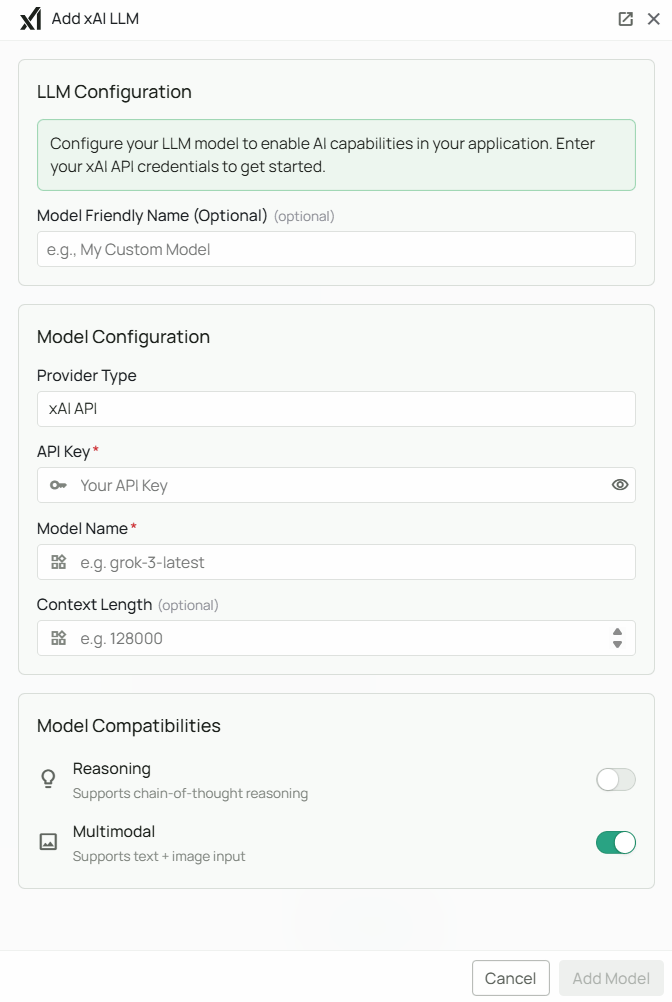
Required Fields
API Key *
The API Key is required to authenticate your requests to x.ai services. How to obtain an API Key:- Log in to the x.ai Console
- Navigate to the API Keys section
- Click on “Create new key” or use an existing key
- Copy the generated API key
Model Name *
The Model Name field defines which x.ai Grok model you want to use with Novaplan AI. Choose a current model: xAI’s model catalog currently listsgrok-4.7 for text and image input. Copy the exact ID available to your API key from the xAI Console or GET /v1/models. Older Grok 3 IDs in previous versions of this guide may redirect to a newer model with different behavior or pricing.
How to choose a model:
- Check the current model page for supported input, reasoning behavior, context length, availability, and pricing
- Confirm the model is enabled for the API key and endpoint used by your managed Novaplan workspace
- Test the selected model in Novaplan AI before assigning it to customer workflows
Optional Fields
Context Length
Specify the maximum context window for your model. x.ai Grok models typically support large context windows for handling extensive conversations and documents. Context length examples:- Grok 4.1 Fast models: Check x.ai documentation for specific context window limits
Multimodal Support
Enable this only if the selected model accepts image input and the deployed Novaplan integration has been tested with it. Model capabilities vary; do not infer image support from the Grok name alone.Reasoning
Enable this option only if the selected model supports reasoning and Novaplan has verified how the checkbox maps to that model’s API settings. xAI model variants can expose different reasoning controls.Configuration Steps
As shown in the image above:- Click Configure on the xAI provider card
- Enter your x.ai API Key in the designated field (marked with *)
- Specify your desired Model Name (marked with *)
- (Optional) Configure the Context Length for your use case
- (Optional) Enable Multimodal support if needed
- (Optional) Enable Reasoning if your model supports it
- Click Add Model to save and validate your credentials
Both the API Key and Model Name are required fields to successfully configure x.ai Grok integration.
Usage Considerations
- API usage will count against your x.ai API quota and billing
- Different models have different pricing - check x.ai’s pricing page for details
- Model capabilities vary - reasoning models provide deeper analysis but may have higher latency
- x.ai Grok provides:
- High-performance agentic tool calling capabilities
- Advanced reasoning for complex problem-solving (reasoning variant)
- Multimodal understanding (text and images)
- Optimized for fast responses and efficient workflows
- Frontier-class model performance
Troubleshooting
- If you encounter authentication errors, verify your API key is correct and has not expired
- Ensure your x.ai account has billing set up if you’re using paid service tiers
- Check that the model name is spelled correctly and available
- Verify that your API key has access to the specific model you’ve selected
- If you’re experiencing rate limits, check your API usage in the x.ai Console dashboard
- For multimodal features, ensure your model supports image inputs
- If using reasoning features, verify that your selected model supports reasoning mode