

Local FS
Index files from a folder accessible to the connector
✅ Ready📖 Documentation Available
What is this?
Local FS lets you search files from a folder that the Novaplan AI connector process can read. Novaplan manages your workspace, so confirm with Novaplan AI support that the folder is available to the connector before configuring a path. Three things to know up front:- The connector does not move, rename, or delete files in the source folder. Synchronization creates records in Novaplan AI and can upload file bytes to workspace storage for processing; do not treat it as a metadata-only scan.
- There’s no login. No password, no API key, no cloud account. You just give it a folder path.
- It’s a personal connector — you set it up under Workspace Settings → Your Connectors, and the files you index are searchable by you inside Novaplan AI. It is not shared with the rest of your team.
Words you’ll see
Check folder availability first
The folder must be readable from the connector process, not merely from your browser or laptop. A path such asC:\Users\... on your device is not automatically available in a managed Novaplan AI workspace. Ask Novaplan to confirm the folder’s availability and permissions before you enter its path. This guide does not describe deploying Novaplan AI.
What you need before you start
- A Novaplan AI account where you can open Workspace Settings (profile menu at the bottom of the main sidebar) and see Your Connectors under the Personal section.
- A folder that Novaplan has confirmed the connector can read.
Setup
Setup
Setup
Step 1 — Open Local FS in Novaplan AI
- In the main app, open your user profile menu at the bottom of the left sidebar, then choose Workspace Settings.
- In the workspace settings sidebar, under Personal, click Your Connectors.
- Find the Local FS card.
- Click + Setup on the card.
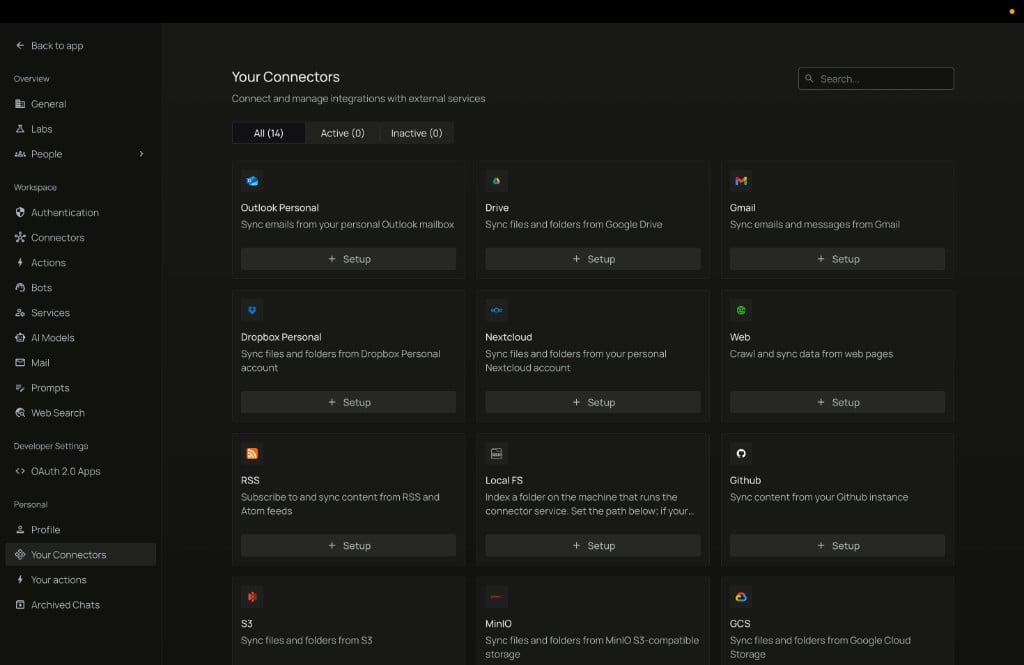
Local FS is a personal connector — set it up from Workspace Settings → Your Connectors, not Workspace Settings → Connectors (team scope). Open Workspace Settings from the profile menu at the bottom of the main sidebar; do not use the Personal section of the main app sidebar (that area is for actions like toolsets, not connector setup).
Step 2 — Name the instance (Authenticate Instance tab)
The first tab is Authenticate Instance. Local FS has no login, so you’ll see a banner that says No authentication required for this connector. That’s normal — there’s nothing to paste.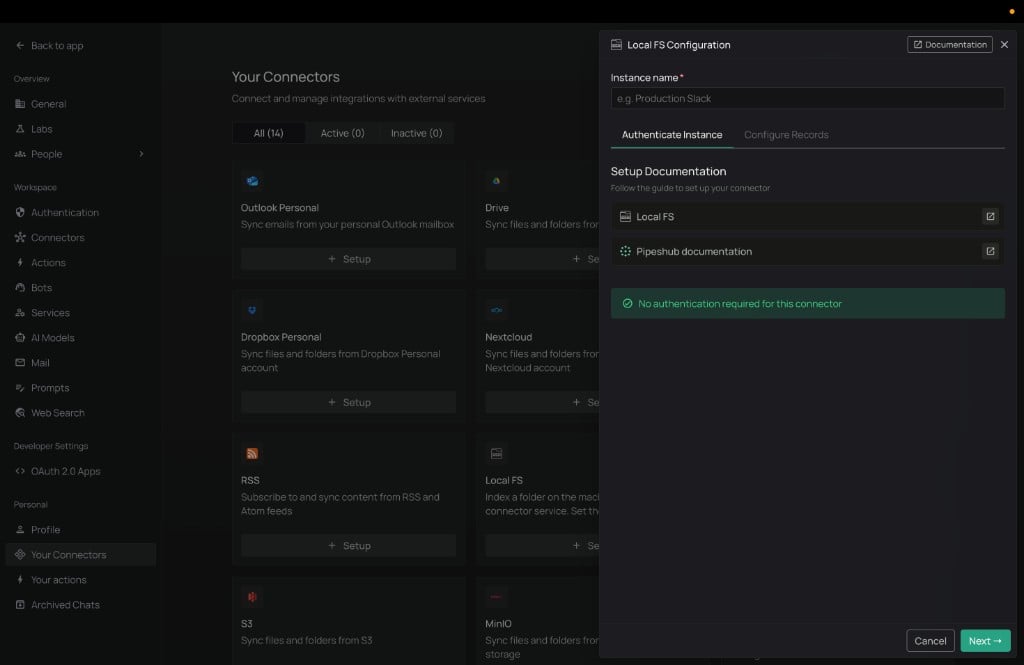
- In Instance name, type a short name you’ll recognise later (for example
Work notes). - Click Next → at the bottom.
The instance name is just a label for you. Pick something descriptive — when you add a second folder later, this is how you’ll tell them apart.
Step 3 — Pick the folder and how often to sync (Configure Records tab)
The panel moves you to the Configure Records tab. This is the only tab where you actually have to make choices.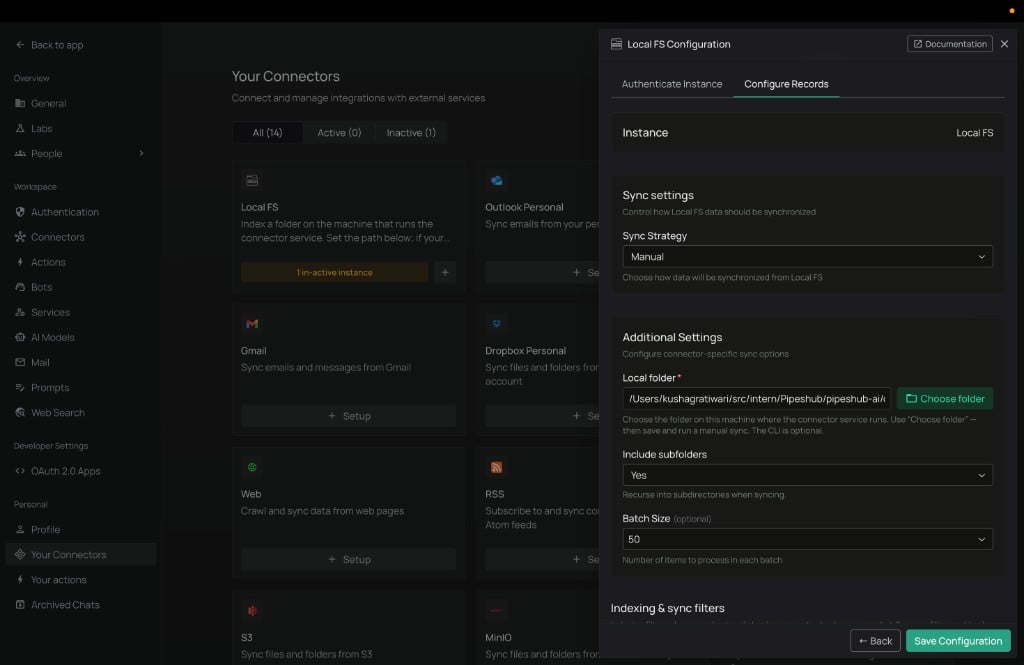
- Sync Strategy
- Scheduled — Novaplan AI rescans the folder on its own. (Recommended.)
- Manual — only rescans when you press Sync / Full sync yourself.
- Sync Interval — how often a scheduled sync runs. 1 Hour is a good starting point.
- Local folder — the path to the folder you want to index. Use Choose folder if a picker is shown, or type the path directly. Make sure it’s a path the Novaplan AI connector can see (see “Which computer?” above).
- Include subfolders — leave this on to index everything inside the folder. Turn it off to index only the files at the top level.
- Batch size — leave it as the default unless someone has told you otherwise.
Not sure what to pick? Scheduled, 1 Hour, Include subfolders ON, batch size as-is — that’s the right answer for most people.
Step 4 — (Optional) Narrow down what gets synced
If your folder has lots of files you don’t care about (build outputs, photos, downloads), you can tell Novaplan AI to skip them.Scroll to Indexing & sync filters and click + Add filter.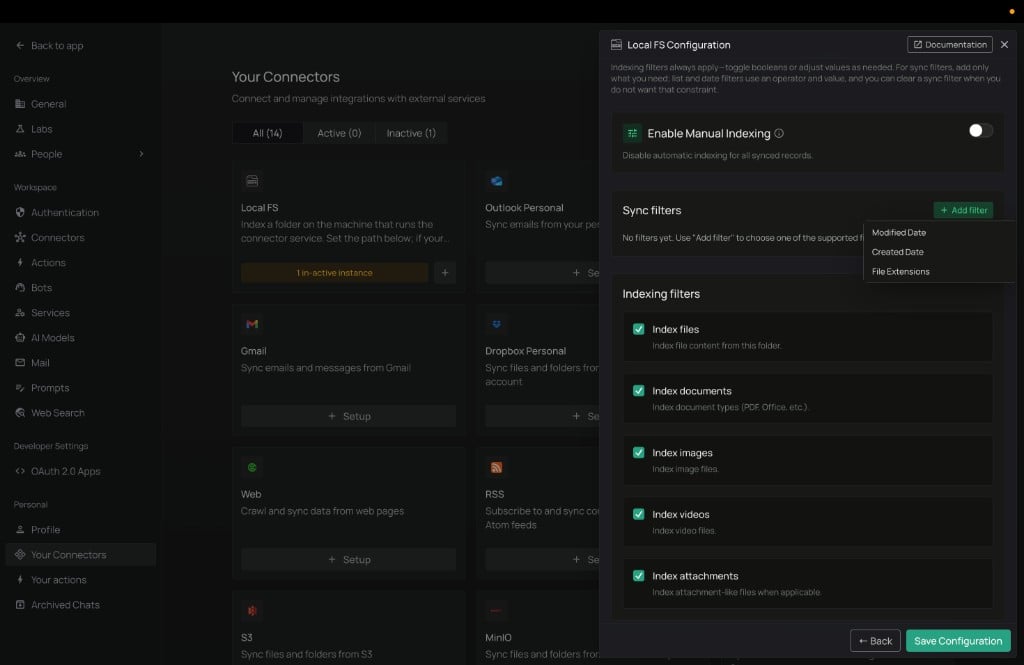
Each filter has an operator — usually In (“only these”) or Not In (“everything except these”).Quick examples:
- PDFs only — File Extensions · In ·
pdf - Skip images and archives — File Extensions · Not In ·
jpg, png, gif, zip - Last year only — Modified Date · After · pick a date
No filters? That’s fine for small folders. Novaplan AI will just sync everything it can read.
Step 5 — Turn sync on
After you save, you’ll land on the Local FS instance page with one row — your new instance.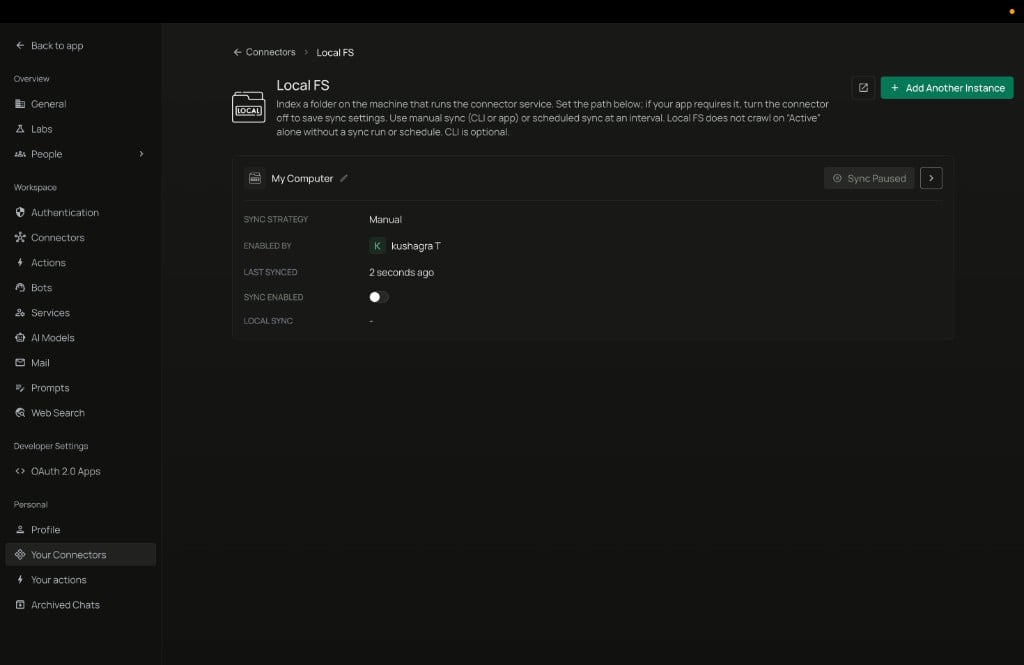
- Find the Sync Enabled toggle on the right of the row.
- Click it on.
Step 6 — Run the first sync and watch progress
Click anywhere on the instance row to open the Overview panel on the right.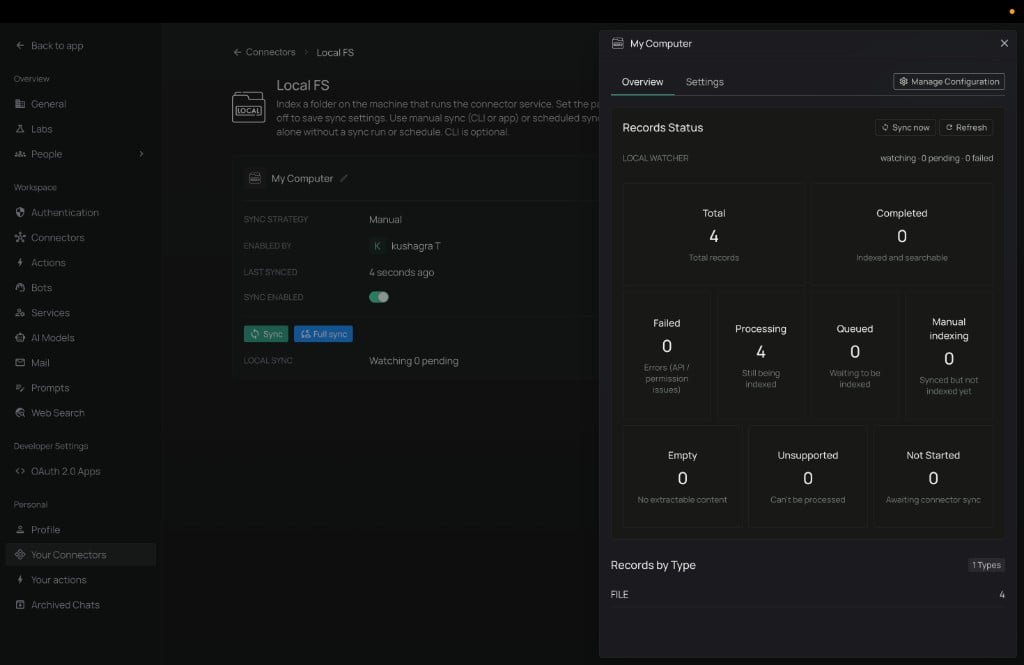
- Total — how many files Novaplan AI has found.
- Completed — files that are fully indexed and searchable.
- Processing — files being read right now.
- Queued / Not Started — files waiting their turn.
- Failed — files Novaplan AI couldn’t read (usually a permission issue, or a corrupt/protected file).
- Sync / Full sync — request another synchronization. The accessible backend sync scans the selected folder again and may rebuild records; do not assume Sync processes only changed files. Confirm the behavior of these controls in your deployed workspace.
- Manage Configuration — re-opens the two tabs from Steps 2–4 if you want to change the folder or filters later.
How syncing works
How syncing works
First sync (full scan)
The first time, Novaplan AI walks the files in the configured folder and its subfolders, if enabled. Duration depends on folder size, file types, parsing, and workspace capacity. Filters can reduce the number of files to process.Later syncs
Later syncs update search records to reflect changes in the source folder:- New files — added to search.
- Edited files — re-indexed.
- Deleted files — removed from search.
Who can see the synced files?
Local FS is registered as a personal connector. Only your Novaplan AI user can search the files indexed by your instance. It does not change permissions on disk in any way.Scheduled vs Manual
Scheduled runs on its own at the interval you picked. Set it once and forget about it.Manual only runs when you click Sync or Full sync. Useful when:- You just dropped a batch of files into the folder and want them searchable now.
- You’re testing filter changes.
What Novaplan AI can read
What Novaplan AI can read
Fully searchable (text inside the file)
These get parsed so you can search the actual contents:- Documents — PDF, DOCX, PPTX, XLSX, ODT, RTF
- E-books — EPUB without copy protection (DRM). Their text can be searched, but they cannot be previewed in Novaplan AI; download the book to read it.
- Plain text — TXT, MD, CSV, JSON, XML, HTML
- Code — .py, .js, .ts, .java, and most others
Stored but not searched inside
These show up by filename and metadata, but their contents aren’t indexed:- Images (JPG, PNG, GIF, …)
- Video and audio
- Archives (ZIP, RAR, …)
- Other binary files
Troubleshooting
The connector says it can't find my folder
The connector says it can't find my folder
The folder path may exist on your laptop but not in the managed workspace, or the connector may lack read permission. Ask Novaplan AI support to verify the path and access from the connector process. Do not use a path from your device unless Novaplan has confirmed it is available there.
Sync runs but I see 0 files
Sync runs but I see 0 files
- The folder might genuinely be empty, or all the files might live in subfolders while Include subfolders is off.
- Your filters might be excluding everything — open Manage Configuration and double-check.
- Ask Novaplan to confirm the files exist at the configured path from the connector process.
Some files synced but they don't appear in search
Some files synced but they don't appear in search
- Allow a minute or two for indexing to finish — large files take longer.
- Check the file type is one Novaplan AI can read inside (see What Novaplan AI can read).
- Password-protected PDFs and Office files won’t be indexed.
- Files showing in Failed on the Overview panel will tell you why — usually a permissions problem.
Scheduled sync never seems to run
Scheduled sync never seems to run
- Make sure Sync Strategy is set to Scheduled and Sync Interval has a value.
- Confirm Sync Enabled on the instance card is on (not paused).
- If the settings look correct, contact Novaplan AI support to check the managed connector process.
The folder stopped working after a workspace change
The folder stopped working after a workspace change
The folder may no longer be available at its previous path. Ask Novaplan to check the folder’s availability and permissions in the current workspace. If the path has changed, update Local folder under Manage Configuration after Novaplan confirms the replacement.
Frequently asked questions
Does Novaplan AI modify or delete my files?
Does Novaplan AI modify or delete my files?
It does not write back to the source folder. It reads files to build search records, and some sync paths upload file bytes into Novaplan AI storage for processing. Ask Novaplan to confirm storage and retention controls for your workspace before connecting sensitive files.
What happens if I delete a file on disk?
What happens if I delete a file on disk?
On the next sync, Novaplan AI notices it’s gone and removes it from search.
Can I connect more than one folder?
Can I connect more than one folder?
Yes. On the Local FS instance page click + Add Another Instance, give it a different name, and point it at a different path. Each instance has its own filters and its own on/off toggle.
Is the folder path stored anywhere sensitive?
Is the folder path stored anywhere sensitive?
The path is saved in your Novaplan AI configuration. Treat it as workspace configuration information and avoid entering credentials in the path field.
Useful links
- Connectors overview — Connectors overview