
Before you start, ask Novaplan Support to confirm the approved OAuth app, Client ID, and Client Secret for your workspace.
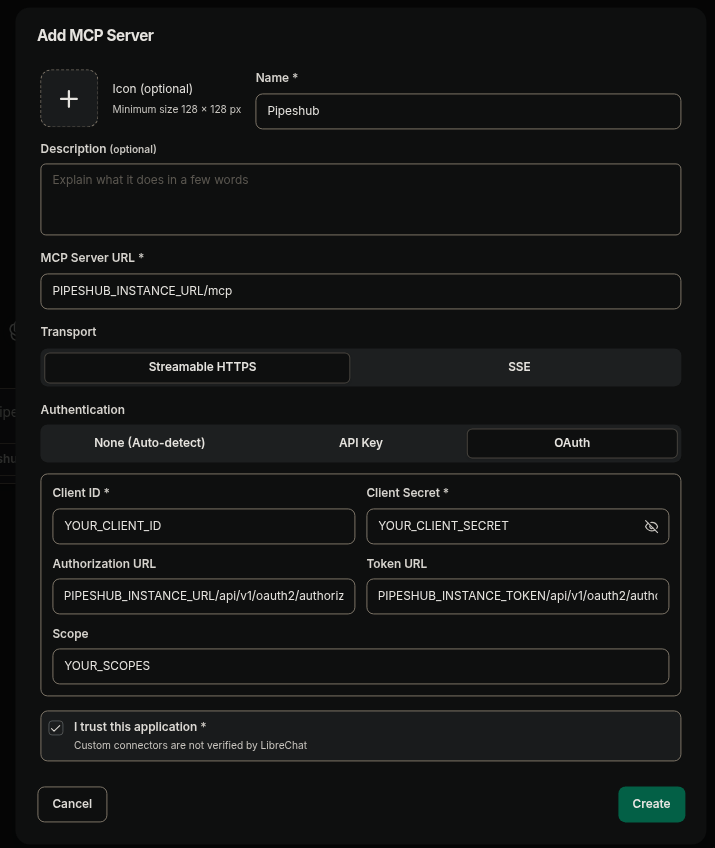
LibreChat MCP configuration
Configuration
1
Open MCP Servers settings
Log in to your LibreChat instance and navigate to the MCP Servers settings panel.
2
Add a new connector
Click Add to create a new custom MCP connector and fill in the details:
- Name:
Novaplan AI(or any name you prefer) - MCP Server URL:
NOVAPLAN_WORKSPACE_URL/mcp - Transport: Select Streamable HTTP for the HTTPS endpoint
- Authentication: Select OAuth
3
Enter OAuth credentials
Enter your OAuth credentials:
- Client ID:
YOUR_CLIENT_ID - Client Secret:
YOUR_CLIENT_SECRET - Authorization URL:
NOVAPLAN_WORKSPACE_URL/api/v1/oauth2/authorize - Token URL:
NOVAPLAN_WORKSPACE_URL/api/v1/oauth2/token - Scope: Enter the space-separated scopes approved for the tools you will use. For the documented search and chat tools, review
openid profile email offline_access semantic:write conversation:write conversation:chat kb:read team:read user:read config:readwith your Novaplan administrator rather than granting it by default.
4
Trust and save
Review the trust prompt and click Create to save the server. LibreChat registers an OAuth-enabled server but leaves it disconnected until a user authenticates.
5
Register the redirect URI
The callback uses your LibreChat base URL and the server name you created. Copy the actual callback from your instance when it is shown, or confirm it with its administrator. A local instance commonly uses this format:Copy the Redirect URI and ask Novaplan Support to register it in the approved Novaplan AI OAuth app.
6
Authenticate
Return to LibreChat and use the server’s Authenticate/Connect control in MCP Settings or the chat server menu. Complete the Novaplan AI login and consent flow. Each LibreChat user authenticates individually.
Redirect URI
LibreChat’s MCP OAuth callback follows this format:<server-name> is the MCP server name you chose in LibreChat, not a separate ID generated after creation. You must register the exact URI in your Novaplan AI OAuth app before authenticating. See LibreChat’s MCP guide for the current callback format.
If your LibreChat instance runs on a different host or port, the URI will reflect that (e.g.,
https://chat.example.com/api/mcp/novaplan/oauth/callback). Use the exact server name and callback shown by your LibreChat instance.Scopes
LibreChat allows you to specify the OAuth scopes in the Scope field. Use a space-separated list:Every requested scope must be allowed for your Novaplan AI OAuth app; the app may allow additional scopes that LibreChat does not request. Confirm the allowed scopes with Novaplan Support.