
DeepSeek configuration
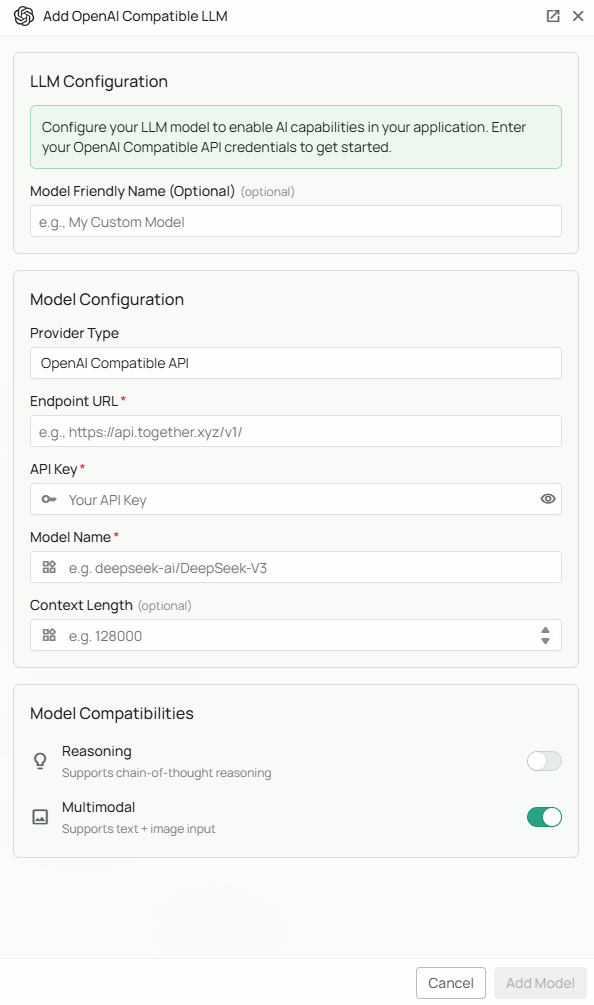
Required fields
The Endpoint URL, API Key, and Model Name fields are required by the Novaplan form. DeepSeek’s published base URL does not include
/v1/; do not assume the suffix is required just because the provider option is named OpenAI API Compatible. Novaplan should test the endpoint from the managed workspace before customers depend on it.
To obtain a key, sign in to the DeepSeek Platform, open API Keys, create a key, and copy it immediately. Ask your administrator to confirm billing, allowed data use, and the model choice. Never place the key in documentation, screenshots, chats, or source code.
Optional features
DeepSeek’s currentdeepseek-flash API supports image input and thinking mode according to its API reference and thinking-mode guide. Enable Multimodal only after Novaplan confirms that the deployed integration sends image inputs in a supported format. The Reasoning checkbox should likewise be tested: DeepSeek exposes a separate thinking control, and the checkbox alone does not prove how Novaplan sends it.
Model features and names change. Check the current DeepSeek documentation and the chosen model’s capabilities whenever you change the configuration.
Connect the model
- In Novaplan AI, choose OpenAI API Compatible as the provider type.
- Enter the DeepSeek Endpoint URL, API Key, and exact Model Name agreed with Novaplan.
- Set Multimodal and Reasoning only after testing the selected model and deployed Novaplan integration.
- Click Add Model and run a permitted text test. If image or thinking behavior matters, test those separately.