
vLLM Configuration
What is vLLM?
vLLM is an open-source library for fast LLM inference and serving. It provides:- High throughput serving with PagedAttention
- Continuous batching of incoming requests
- Optimized CUDA kernels for faster inference
- OpenAI-compatible API server
- Support for various popular open-source models
Prerequisites
Before configuring vLLM in Novaplan AI, ensure you have:- A running vLLM server instance
- An endpoint URL that Novaplan has confirmed is accessible from your managed workspace
- (Optional) API key if you’ve configured authentication on your vLLM server
- The model name/path used when starting your vLLM server
Starting a vLLM Server
If you haven’t started a vLLM server yet, here’s a quick example:http://localhost:8000/v1/. A managed Novaplan AI workspace needs a separately reachable network address; confirm it with Novaplan.
Required Fields
Endpoint URL *
The Endpoint URL is the base API endpoint of your vLLM server. Format:http://your-server:port/v1/
Examples:
- On the vLLM server itself:
http://localhost:8000/v1/(for local checks only) - Remote server:
http://192.168.1.100:8000/v1/ - Domain-based:
https://vllm.yourdomain.com/v1/
- The endpoint URL must include the
/v1/suffix - Use
https://for production deployments with SSL/TLS - Ensure the server is accessible from where Novaplan AI is running
- Check firewall rules if connecting to a remote vLLM server
API Key *
The API Key field is used to authenticate requests to your vLLM server. Configuration options:- If your vLLM server was started with
--api-key, enter that key here - If your vLLM server was started without authentication, you can enter any placeholder value (e.g.,
no-keyordummy)
--api-key does not authenticate every endpoint on the server, including /invocations; it is not a complete server access control. Coordinate the network path and any additional protection with Novaplan and your model-server administrator.
Model Name *
The Model Name must match the identifier exposed by your vLLM server’s API. This is usually the model used at startup, but a server configured with--served-model-name can expose a different name.
Examples:
Qwen/Qwen3-8B
/v1/models; do not guess from the startup command alone.
Optional Features
Multimodal
Enable this checkbox if your vLLM server is running a model that supports multimodal input (text + images). When to enable:- You’re using a vision-language model (e.g., LLaVA, Qwen-VL)
- The model was specifically trained for multimodal understanding
- You need to process documents with images or visual content
Qwen/Qwen3-8B server example above is a text-generation model; do not enable Multimodal for that example solely because it belongs to the Qwen family. Consult the selected model’s card and the vLLM supported-model list.
Note: Standard text-only models do not support multimodal capabilities. Verify your model’s documentation before enabling this feature.
Reasoning
Enable this checkbox if your model has enhanced reasoning capabilities. When to enable:- You’re using a reasoning-focused model (e.g., DeepSeek-R1)
- The model is designed for complex problem-solving tasks
- Your use case involves mathematical, logical, or multi-step reasoning
Configuration Steps
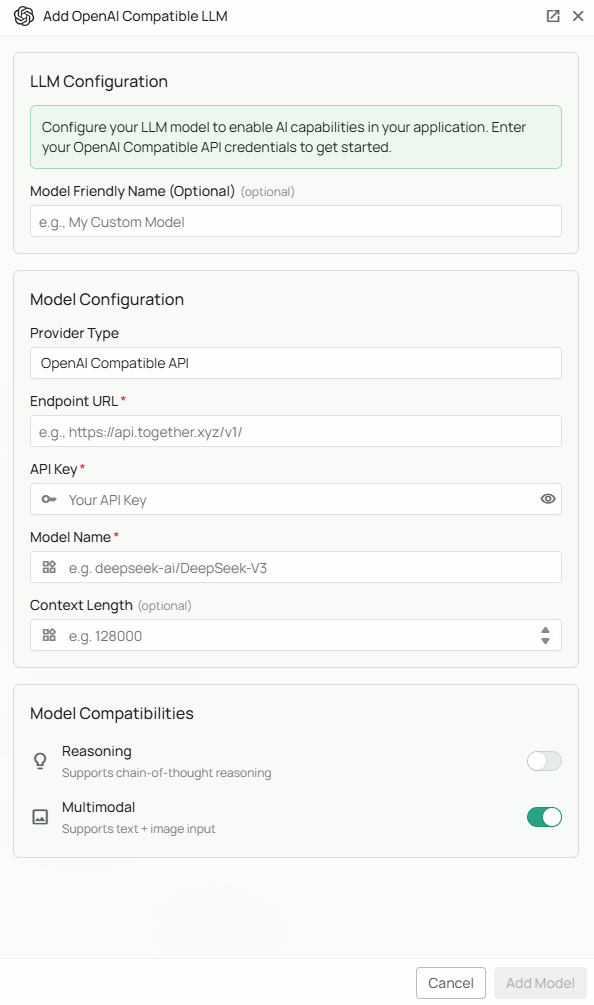
As shown in the image above:- Select “OpenAI API Compatible” as your Provider Type from the dropdown
- Enter the vLLM Endpoint URL that Novaplan has confirmed is reachable from your workspace (for example,
https://vllm.example.com/v1/) - Enter your API Key (or a placeholder if authentication is disabled)
- Specify the exact Model Name used when starting your vLLM server
- (Optional) Check “Multimodal” if using a vision-language model
- (Optional) Check “Reasoning” if using a reasoning-focused model
- Click “Add Model” to complete the setup
Supported Models
vLLM supports a wide range of open-source models. For the most up-to-date list of supported models, check the vLLM documentation.Performance Considerations
Optimizing your vLLM deployment:- GPU Memory: Ensure adequate GPU memory for your model size
- Batch Size: vLLM automatically manages batching for optimal throughput
- Tensor Parallelism: For large models, use multiple GPUs with
--tensor-parallel-size - Quantization: Use quantized models (GPTQ, AWQ) to reduce memory usage
- Context Length: Adjust
--max-model-lenbased on your use case
Troubleshooting
Connection Issues:- Verify the endpoint URL is correct and includes
/v1/ - Check that the vLLM server is running:
curl http://localhost:8000/health - Ensure network connectivity between Novaplan AI and vLLM server
- Check firewall rules and port accessibility
- For remote servers, ensure proper DNS resolution
- Verify the API key matches what was set with
--api-keywhen starting vLLM - If no authentication was configured, any placeholder value should work
- Check vLLM server logs for authentication failures
- Confirm the model name exactly matches the one used to start the vLLM server
- Query available models:
curl http://localhost:8000/v1/models - Restart vLLM server if the model was changed
- Monitor GPU memory usage and utilization
- Check vLLM server logs for warnings or errors
- Consider using a smaller model or quantization
- Adjust
--max-model-lenif seeing out-of-memory errors - Use tensor parallelism for large models
- Verify CUDA/GPU drivers are properly installed
- Check you have sufficient GPU memory for the model
- Review vLLM server logs for detailed error messages
- Ensure the model is compatible with your vLLM version