

Google Drive Toolset
Cloud file storage and management
ReadyGoogle Workspace
Overview
The Google Drive toolset enables AI agents to manage files and folders in Google Drive.Key Capabilities
- List and search files across Drive
- View file details and metadata
- Read supported file content when the agent has access
- Create folders and organize content
- Check file permissions and sharing settings
- Access shared drives
Available Tools
get_file_content supports common document and text formats, including Google Docs, Sheets, and Slides. The accessible tool implementation rejects folders, unsupported Google Workspace formats, and files larger than 50 MB. Confirm the available tools and limits in your Enterprise workspace before relying on this action.Setup
Setup
Setup
Step 1: Create Google Cloud Project
- Go to Google Cloud Console
- Create a new project or select an existing one
- Note your project ID
Step 2: Enable Google Drive API
- Navigate to APIs & Services > Library
- Search for “Google Drive API”
- Click “Enable”
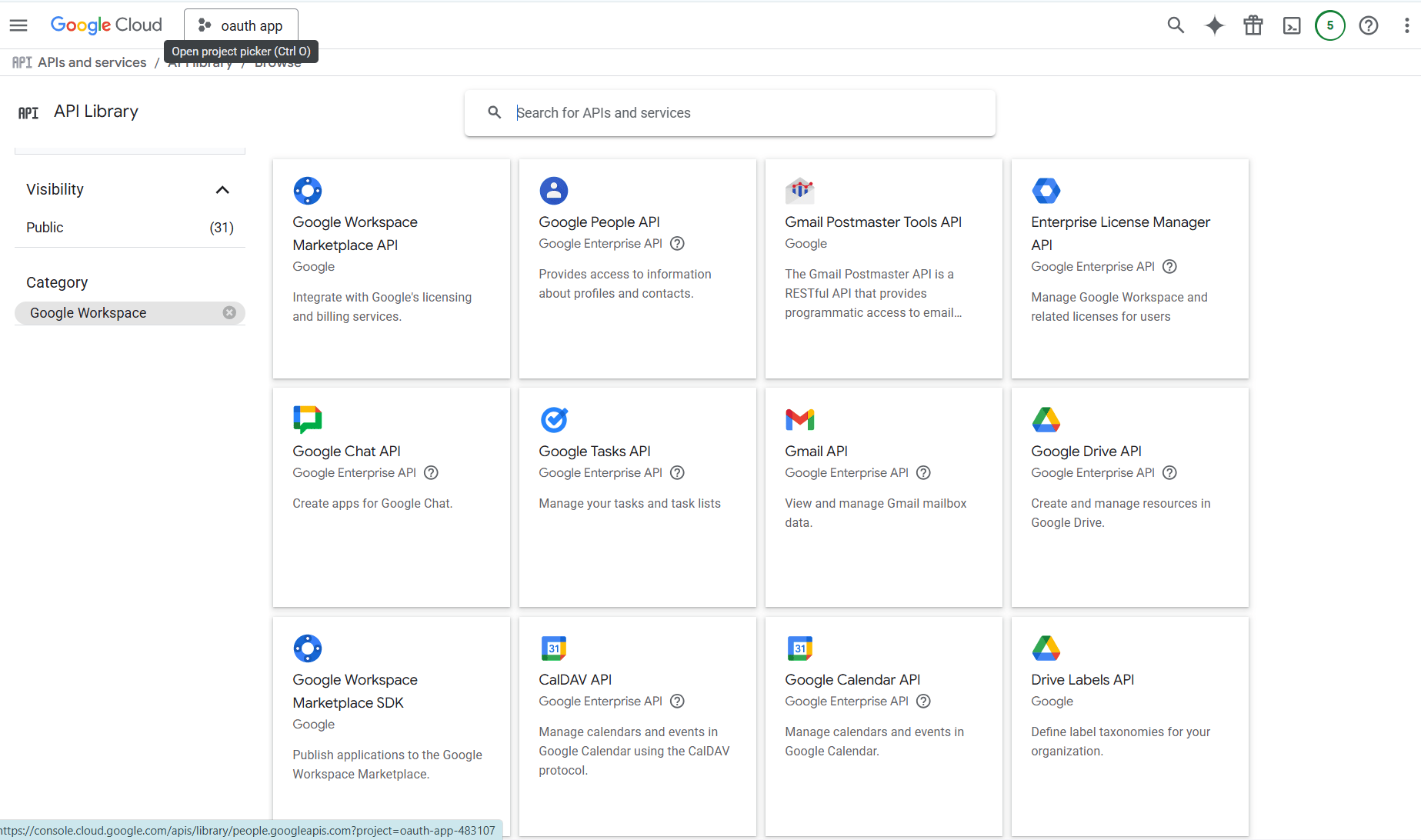
Step 3: Configure OAuth Consent Screen
- Navigate to APIs & Services > OAuth consent screen
- Configure the OAuth consent screen with your app information
- Add the required scopes (see Step 6)
Step 4: Get Redirect URI from Novaplan AI
- In Novaplan AI, open Workspace Settings → Actions.
- Find Drive and choose + Setup or Configure.
- Copy the Redirect URI shown in the dialog
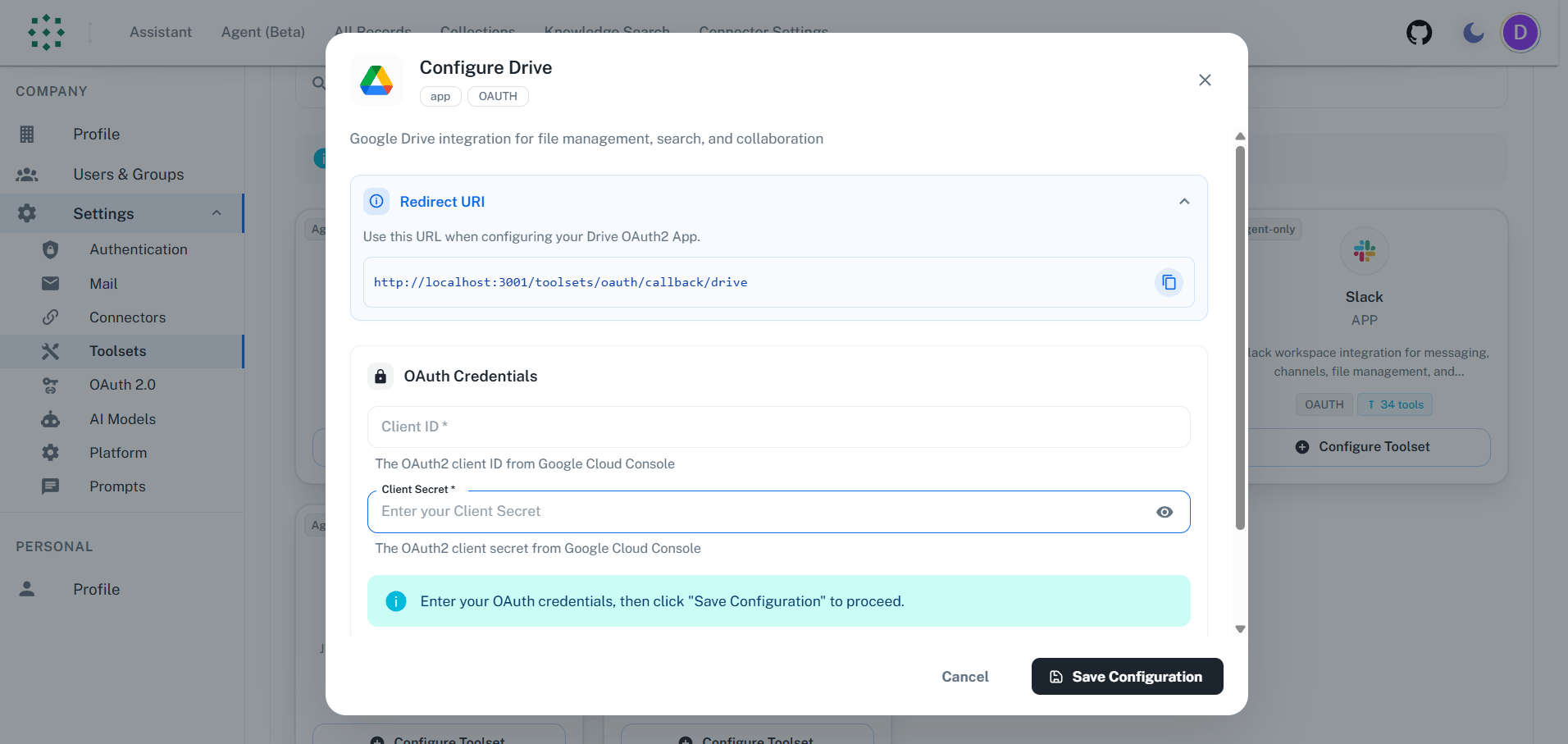
Step 5: Create OAuth Client ID
- Navigate to APIs & Services > Credentials
- Click “Create Credentials” > “OAuth client ID”
- Select “Web application”
- Set the Authorized redirect URI to the URI from Novaplan AI
- Click “Create”
- Copy your Client ID and Client Secret
The redirect URI must match exactly your Novaplan AI URL.
Step 6: Add Required Scopes
Add these OAuth scopes in the OAuth consent screen > Scopes section:Required Scopes:https://www.googleapis.com/auth/drive- Full Drive accesshttps://www.googleapis.com/auth/drive.file- Access files created by the apphttps://www.googleapis.com/auth/drive.metadata.readonly- Read file metadata
Step 7: Configure in Novaplan AI
- Return to the Novaplan AI Drive configuration dialog
- Enter your Client ID and Client Secret
- Click “Authenticate”
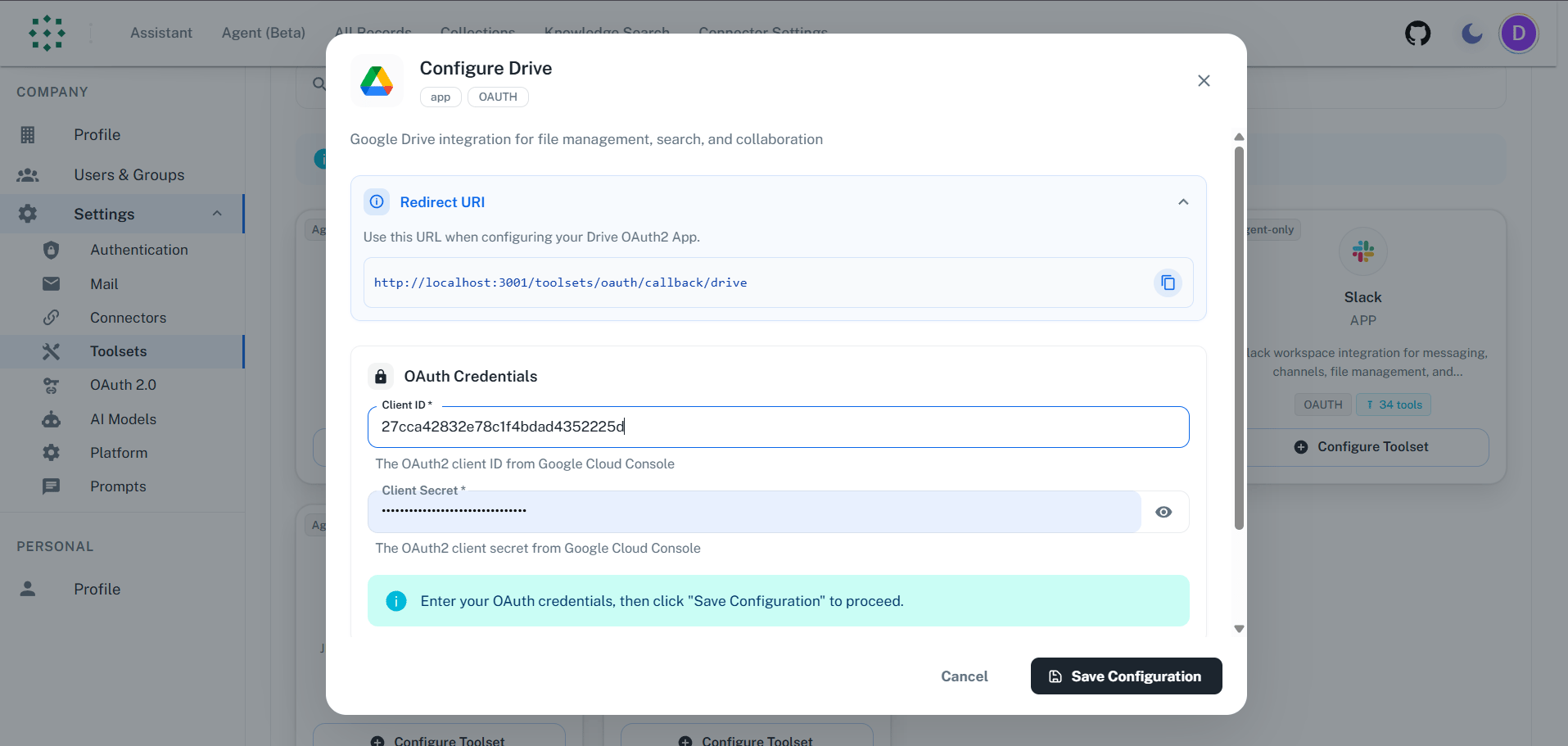
Step 8: Authorize Access
- A popup will open to Google’s consent screen
- Sign in and grant permission for Drive access
- Click “Allow”
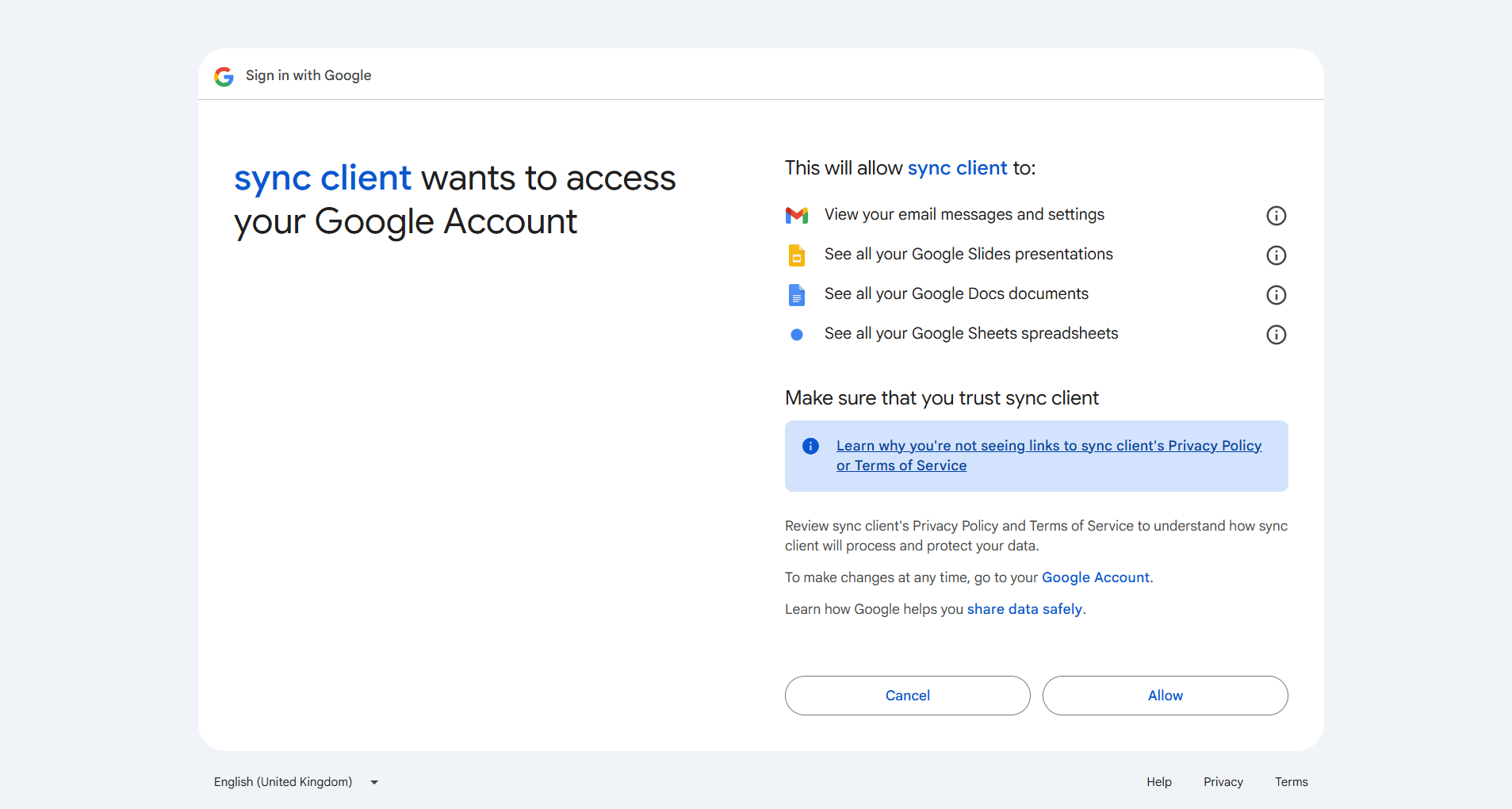
- You’ll be redirected back to Novaplan AI
- The toolset will show “Authenticated” status
FAQ
What's the difference between Drive Connector and Drive Toolset?
What's the difference between Drive Connector and Drive Toolset?
Example: Use Drive Connector to search indexed documents. Use Drive Toolset to inspect a Drive file or create a folder. The tools listed here do not include document creation.
Usage Tips
How do I find files?Ask your agent to “search Drive for [filename]”. The Drive tool searches file names for plain-text queries; a structured Drive query can use other supported fields. To read a supported file’s content, ask the agent to open the file it found. How do I create folders?
Ask to “create a folder called Project Files” and specify the parent folder if needed. Folders help organize your Drive content.